
- Sign in and the setup wizard opens on its own. It takes about fifteen minutes.
- Everything is skippable and everything can be changed later from Settings.
- Your clients import themselves from a CSV, dogs included. A messy export can be emailed to us instead.
- You finish with a booking page link ready to share.
Before you start, have these handy
- Your ABN and the bank account clients pay into (they go on your invoices)
- Your services and what you charge for each: consult, session, program, class, stay
- The days and hours you want clients to be able to book
- An export of your current client list, if you have one (more on that below)
None of it is required to get in. The wizard lets you skip any step, and every answer can be changed later under Settings.
The setup wizard, step by step
The first time you sign in, PackOffice asks for your practice name and opens the wizard. If you ever want it back, it lives behind the Setup guide link at the bottom of the menu.
1. Your practice
Trading name, your first name, ABN, phone, email, suburb and bank account. Two minutes here saves you typing the same details on every invoice: they are filled in automatically from now on.
2. Services and prices
PackOffice starts you with two example services. Rename them, set your own prices and durations, and add the rest of what you offer. A few things worth knowing while you price:
- Programs (blocks of sessions) can be sold at a package price with a payment plan: a deposit or first instalment at booking, the rest on set dates with automatic reminders.
- Group classes get size limits, terms, class packs and QR check-in. Set the per class and per term price on the service.
- Day training and board and train are sold per day or per night, with a deposit percentage and the balance due before drop-off.
- Each service chooses whether new clients can book it online, and whether booking is instant or request first.
3. Availability
Add the days and hours clients can book you, with the slot length and a buffer between bookings for travel. This powers your public booking page. Skip it and the page simply takes enquiries instead of bookings.
4. Card payments
Optional. Connect Stripe and invoices carry a pay link; the money goes into your own Stripe account and the all in fee on an Australian card is 2.5% + 30c. Stripe asks for ID, your ABN and a bank account, and the wizard picks up where you left off when you come back. Prefer bank transfer? Skip this step and your invoices show your bank details instead, with no fee at all.
5. Your clients
Bring your existing clients across so your calendar and invoices start with real names. You can import a CSV right from this step, add clients one at a time, or skip and do it later from the Clients page. The import deserves its own section, so it gets one below.
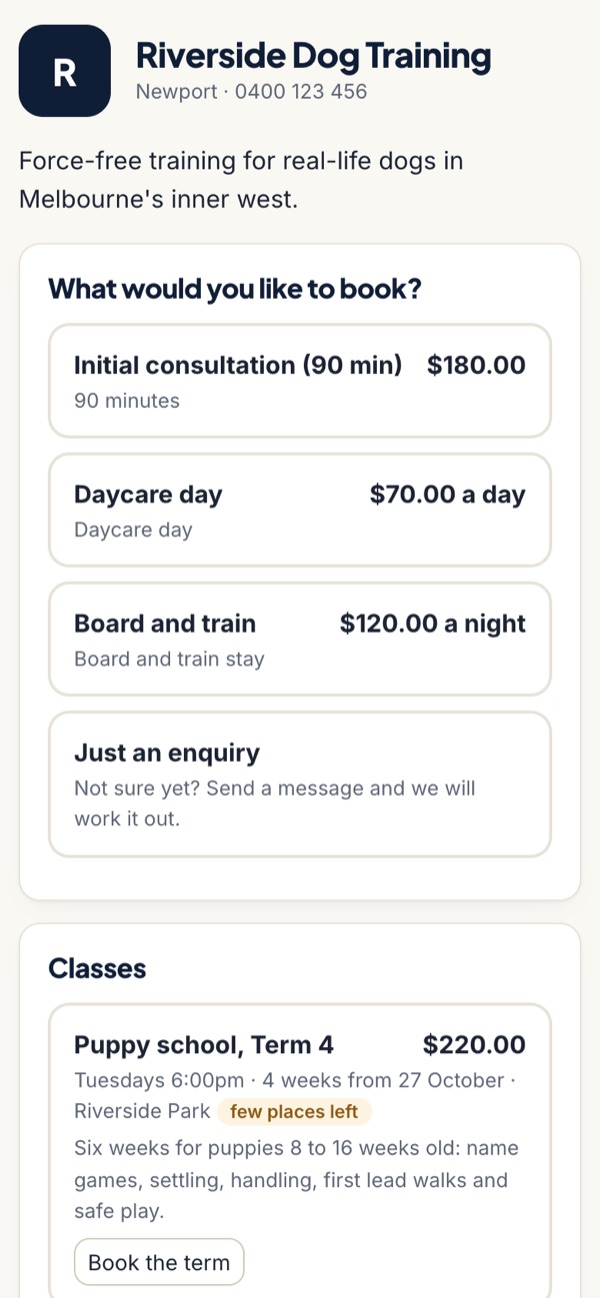
6. Your booking page
The wizard ends with your booking page link. Copy it and put it wherever clients find you: your website, Instagram bio, Facebook page and Google Business Profile. Enquiries and bookings from that page land in your Enquiries list and turn into clients with one click.
Importing your clients, properly
You do not need anyone's help for this, and nothing is emailed to your clients during an import. You need one file: a CSV with a header row and one row per client. Where to get it:
| Where your list lives | How to export it |
|---|---|
| Excel or Google Sheets | File → Download → CSV. Keep the header row. |
| Google Contacts | contacts.google.com → Export → Google CSV. |
| Square | Customers → Import/Export → Export customers. |
| Acuity or Calendly | Your client or invitee list → Export CSV. |
| Another booking or CRM tool | Look for Export, Download or Backup in its settings. Any CSV of contacts works. |
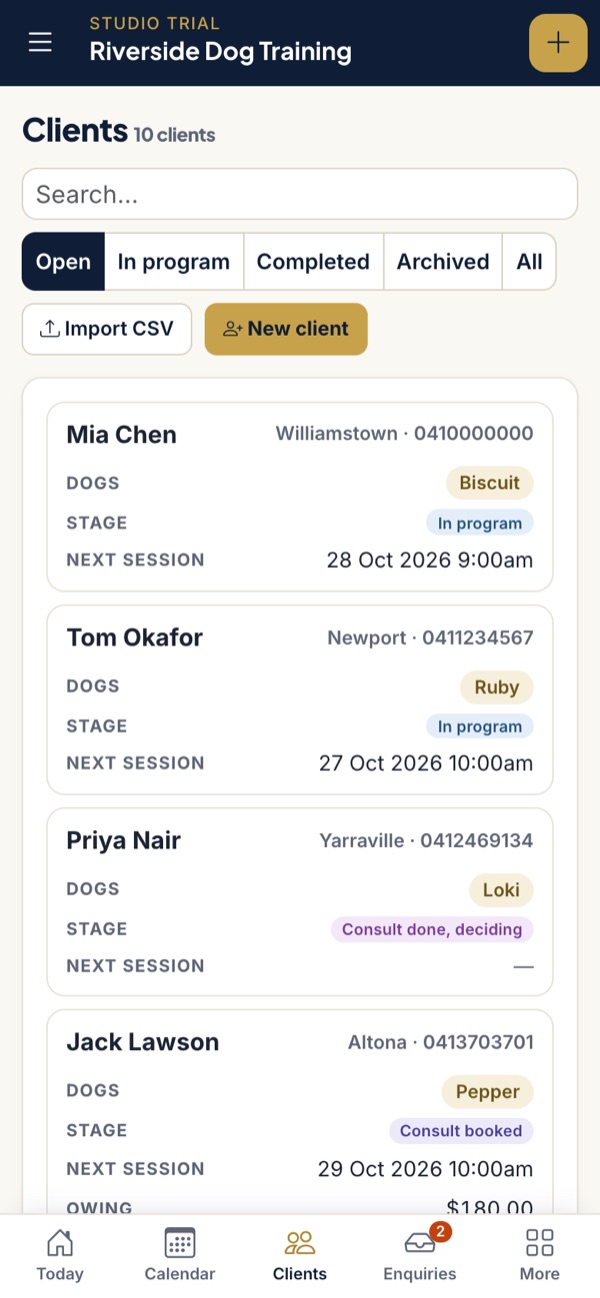
Then, in PackOffice: Clients → Import CSV (or the same button on wizard step 5). Upload the file, or paste the rows straight in. PackOffice guesses which column is which: names, email, phone, suburb, dog name, breed, age, notes. Check the matching, look at the preview of the first few rows, and import. A dog column becomes each client's first dog, and rows whose email already belongs to a client are skipped so you can run the same file twice without doubling anyone up.
There is a sample CSV to download inside the import window if you want to see the shape we expect, or to retype a paper list into.
List in a mess? WhatsApp threads, a paper diary, an export full of odd columns: email it to [email protected] as it is and we load it for you, usually within a day. Founding trainers get this done live on their two hour setup call.
Your first week
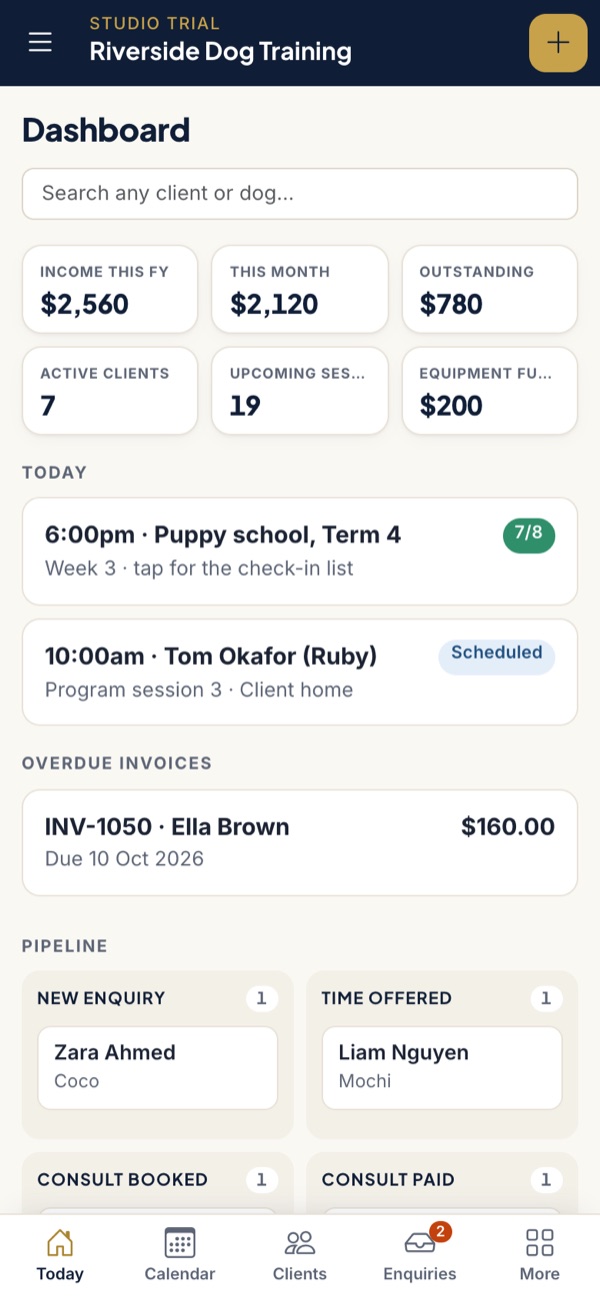
- Book a session from the Calendar: pick the client, the service fills the price and length.
- Send an invoice from the client's page. It emails with a pay link or your bank details, and reminders chase it so you do not have to.
- Watch Enquiries: new booking page submissions appear there, and one click turns an enquiry into a client with their dog.
- Wander Settings when you are ready: reminders, message templates, forms, GST, your logo and colours all live there.
Questions trainers ask while setting up
How long does it take to set up PackOffice?
Most trainers finish in under an hour: about fifteen minutes for the wizard and the rest for importing clients and looking around. Founding trainers get a two hour setup call where the import is done for them.
Can I import my clients myself?
Yes. Export a CSV from wherever your list lives, upload it on the Clients page, check the column matching and import. Clients and dogs come across together. If the export is messy, email it to [email protected] and it is loaded for you.
Do I need my ABN and bank details to start?
No. Skip anything in the wizard and fill it in later from Settings. You need them before your first invoice goes out, because they appear on it.
Do I have to connect Stripe?
No. Invoices can show your bank details for free transfers instead. Connect Stripe when you want card payments; the money goes into your own Stripe account.
Can clients book me straight away?
As soon as you add availability and share your booking page link. Each service chooses instant booking or request first, so nothing lands in your calendar without the rules you set.
Not set up yet?
PackOffice is admin software built only for dog trainers. Bookings, reminders, class check-in, invoices, payment plans, GST and bank matching in one app, from A$59 a month.
Apply for founding accessTake the tour